
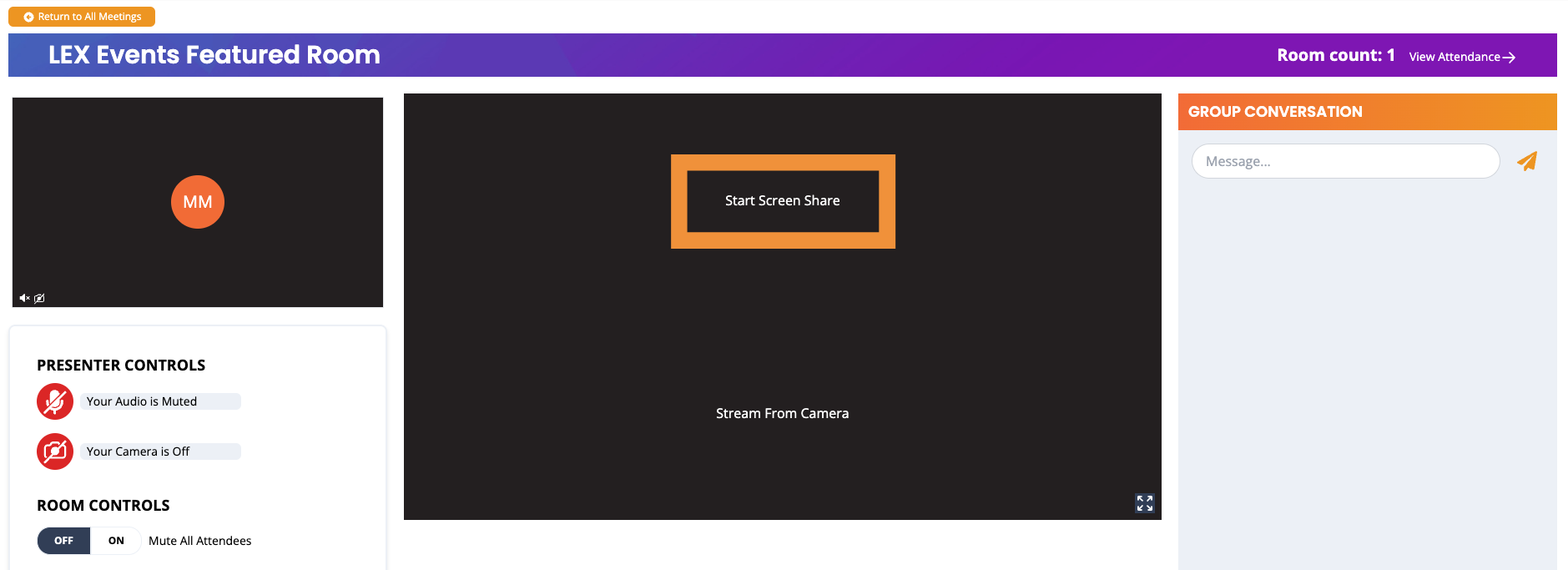
It’s extremely easy to share your screen in LEX Events! Simply click on the white text “Start Screen Share” in the center of your screen. When you click on this text, a pop-up window will appear, guiding you to choose what you would like to share (see below). You have the option to share your entire screen, a browser window or computer application, or a single browser tab.
Share your entire screen:
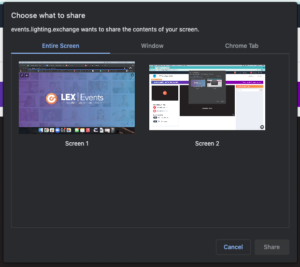
Share a window from your browser or a computer application (i.e., PowerPoint):

Share a single tab from your browser:

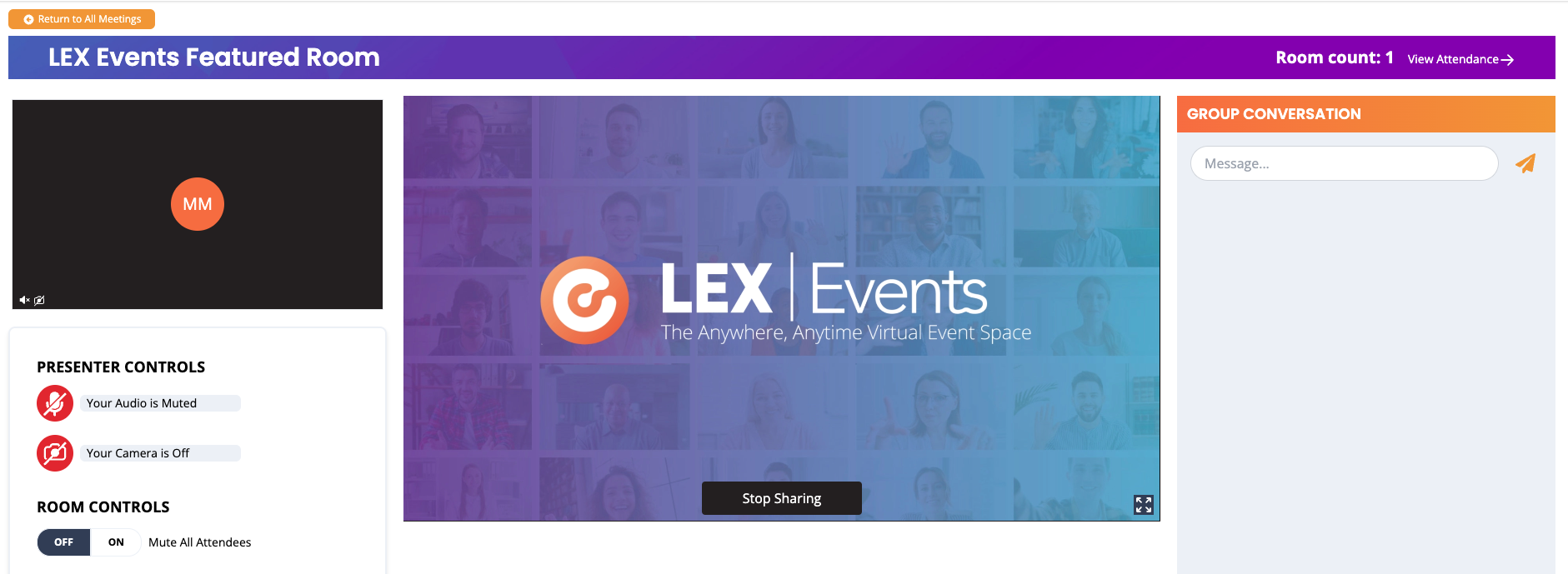
After selecting which screen you would like to share, your shared presentation will show up in the center of your screen inside your room (see below). When you are ready to stop sharing your screen, simply click on the “Stop Sharing” at the bottom of your presentation inside your room.
Best Practices:
- Use a browser that is compatible with LEX Events. Please note that mobile devices do not allow a browser to share your screen. For a full list of compatible browsers, please click here: System Requirements.
- Present with two monitors! We highly recommend hosting your presentation with two monitors so that you can manage your presentation on one screen and interact with your attendees on another.