
It’s extremely easy to stream a video from a 2nd device in LEX Events! First, you need to make sure that your camera is connected to your computer. The best way to connect your camera to your computer is directly through a USB cable. You can skip this step if you are presenting through a mobile device instead of a computer.
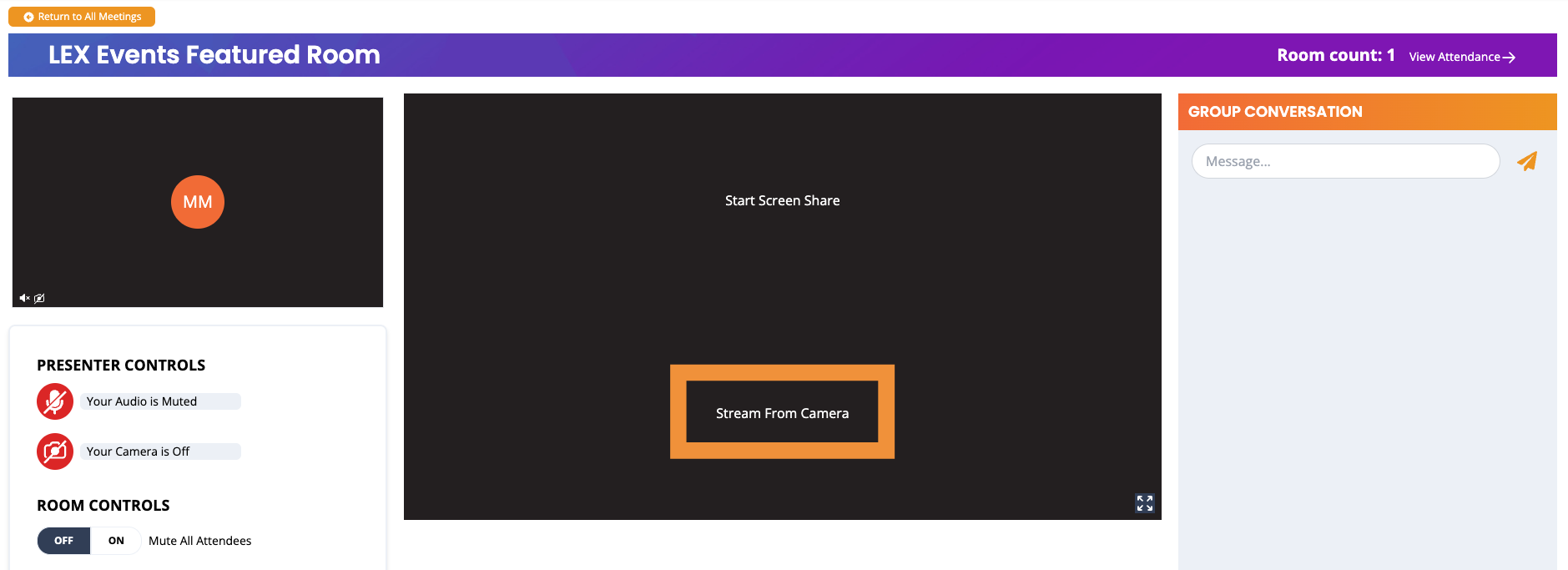
Once your camera is connected to your computer, all you need to do is click on the white text “Stream From Camera” in the center of your screen. When you click on this text, a pop-up window will appear, guiding you to select the camera you would like to stream. Below is an example of what that pop-up window looks like.
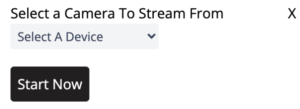
After you select which camera you would like to share, simply click on the “Start Now” button, and your live stream will show up in the center of your screen inside your room. When you are ready to stop streaming your camera, you can click the “Stop Sharing” button at the bottom of your presentation inside your room.
Best Practices:
- Use a browser that is compatible with LEX Events. For a full list of compatible browsers, please click here: System Requirements.
- Practice using the “Stream From Camera” feature before presenting on the day of the event.
- Take advantage of the opportunity to have two presenters in one room if you are struggling to manage the presentation on your own.